
CalendarGo Mobile App
Quick Setup Guide for Strathmore (example) Parents
1. Download Calendar Go
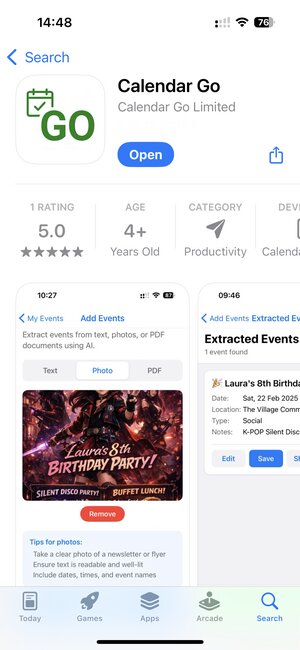
Search for "Calendar Go" in the Apple App Store or join this Google Group to download the Android app.
Tip: Look for the green calendar icon with a checkmark and "GO" text.
2. Create Your Account
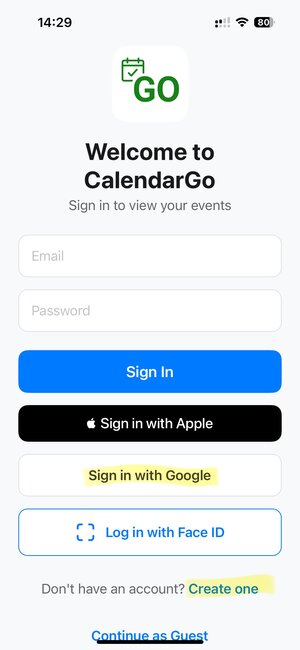
Sign up using your email, Apple ID, or Google account. You can also tap "Create one" at the bottom.
Quick option: "Sign in with Apple" or "Sign in with Google" is fastest!
3. Connect Your Calendar
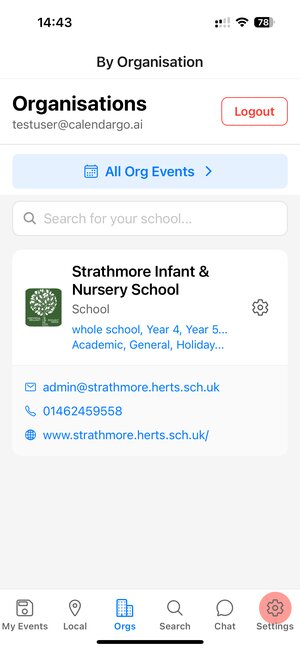
Notice the red circle on the Settings tab? This means you need to connect your calendar. Tap the Settings tab.
Important: Connect your calendar first so school events sync automatically!
4. Authorise Calendar Access
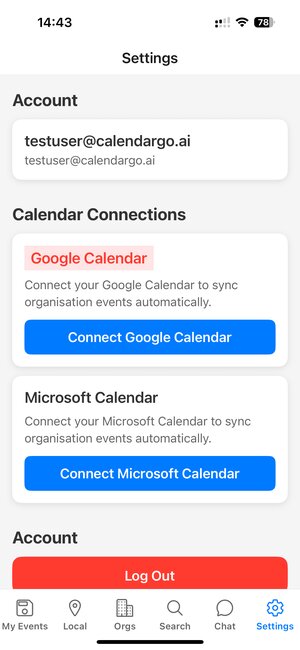
Step 4a:
Within the Settings tab - Tap "Connect Google Calendar" (or Microsoft if you use Outlook).
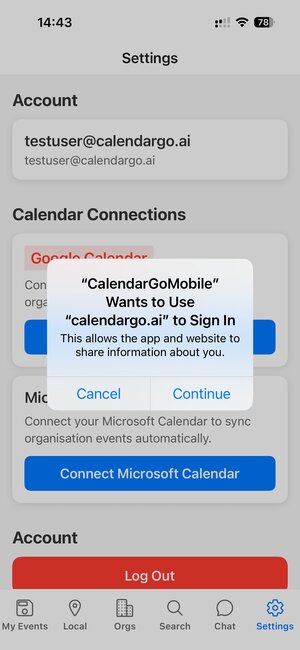
Step 4b:
A popup appears - tap "Continue" to proceed.
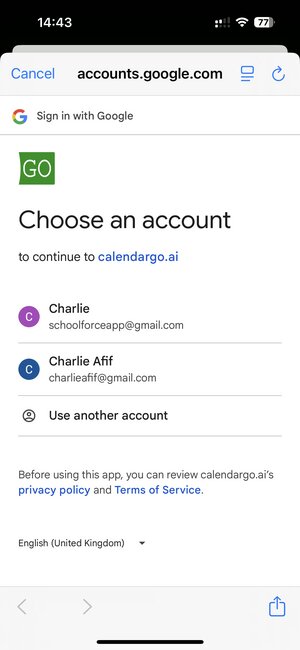
Step 4c:
Select the Google account you want events synced to.
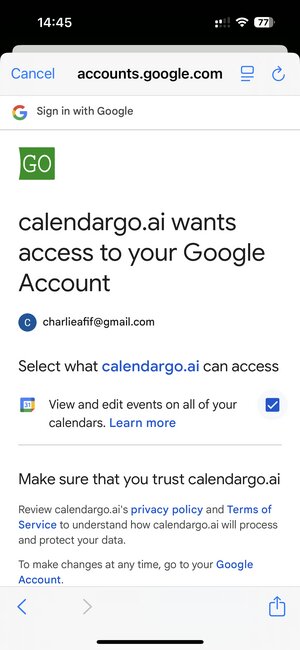
Step 4d:
Important! Check the box to allow calendar access, then tap Continue.
5. Verify Your Connection
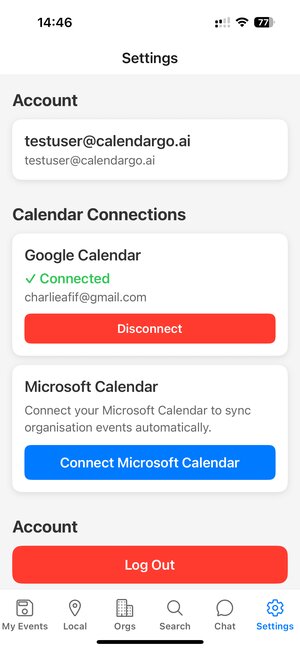
Go to Settings and check it shows "Connected" next to the calendar you connected (Google or Microsoft Outlook).
Not showing "Connected"? Tap another tab (e.g., My Events), then tap Settings again. If it still doesn't show, repeat the connection steps and make sure to check the calendar permission box from step 4d.
6. Subscribe to Strathmore
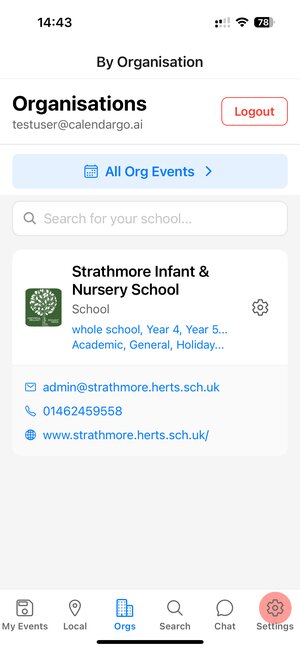
Tap the Orgs tab at the bottom. Search for "Strathmore" and tap Subscribe.
Done! Once subscribed, you'll see the school listed. Tap on it to view events or tap the gear icon to adjust your events and updates preferences.
7. Set Your Preferences
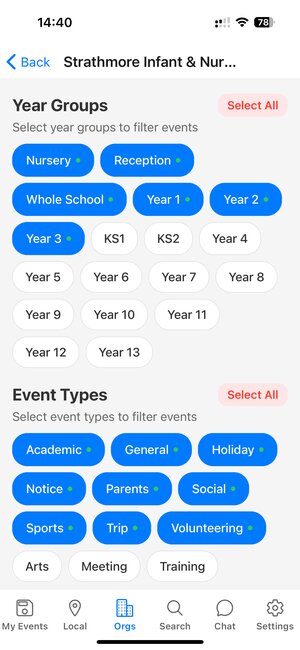
Tap the settings icon next to Strathmore to filter your subscribed events by:
- Year Groups - Select your child year(s)
- Event Types - Choose Academic, Sports, Social, etc.
Tip: Blue badges with checkmarks show selected options. Only events matching your selections will auto-sync to your calendar. It's also best to leave all Event Types checked so you don't miss anything.
8. You're All Set!
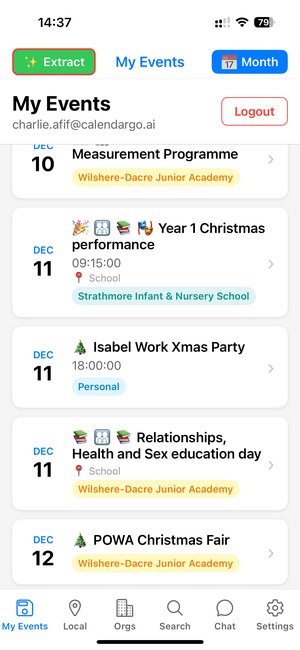
School events will now appear in the My Events tab and automatically sync to your connected calendar!
Bonus Features:
Local Events - Discover activities in your area
Extract Events - Snap a photo of any flyer to add events
Ask AI - Chat about newsletter content
Questions? Email us at support@calendargo.ai
Jump to step:
Download the app: